Travel photographer
A passerby, sign, or small object distracts from a landscape or landmark photo.
Use a careful selection and inspect the surrounding scenery for repeated textures or obvious seams.
how to use magic eraser on wallsGoogle Photos tutorial
This guide explains how to use magic eraser Google Photos for cleaning up everyday images, from selecting a distraction to reviewing the finished edit before saving it.

Start with the right case
A clear goal and a suitable image make the editing process easier to control. Choose the closest situation below before you begin.
A passerby, sign, or small object distracts from a landscape or landmark photo.
Use a careful selection and inspect the surrounding scenery for repeated textures or obvious seams.
how to use magic eraser on wallsA background person or cluttered item competes with the main subject in a casual snapshot.
Work around the subject rather than over it, then compare the face, hair, and nearby edges before keeping the edit.
how to use magic eraser on wallsA small mark, cable, label, or unrelated object appears near a product photo.
Make short edits in separate passes so the product outline remains consistent and the background does not look over-smoothed.
how to use magic eraser on wallsA visual distraction makes an otherwise useful portrait or scene feel unfinished.
Check the crop and composition after editing because removing one object can change the balance of the whole image.
how to use magic eraser on wallsWork in three passes
The same basic sequence works for most edits: open the image, identify the unwanted area, and verify the result before exporting or sharing.
Choose the photo you want to adjust and open its editing controls. Use the original, highest-quality version available so fine edges and textures are easier to judge.
Choose the removal or erase control, then brush, circle, or otherwise mark the unwanted object. Keep the selection as tight as practical; including a little surrounding context can help, but a large loose selection may change areas you wanted to keep.
Inspect the repaired area at normal size and zoom in around faces, lines, text, repeated patterns, and sharp edges. Undo and try a smaller selection when the result looks soft, duplicated, or visibly generated, then save only after the edit meets your standard.
Troubleshooting
Most disappointing results come from selection size, difficult backgrounds, or skipping the review step. These checks help you diagnose the problem without repeating the whole edit.
Improve the finish
Once the basic workflow is familiar, small process changes can make edits more believable and easier to review.
A removal tool can struggle with faces, fingers, printed text, thin wires, reflections, or backgrounds with strong perspective lines.
Workaround
Make smaller selections, compare several attempts, and keep the original so you can choose the least distracting result.
Removing a person, vehicle, or large foreground item may require the surrounding scene to be reconstructed across a wide area.
Workaround
Edit in sections when possible and check nearby patterns, shadows, and edges after each pass.
An apparently clean patch can still alter lighting, object boundaries, or details close to the selected area.
Workaround
Use the edited image for the intended visual purpose only, and retain the unedited original for records or future work.
The exact location, wording, availability, and behavior of editing controls may differ between app versions and devices.
Workaround
If the expected control is missing, update the app, check the image editor again, or use an available online photo workflow instead.
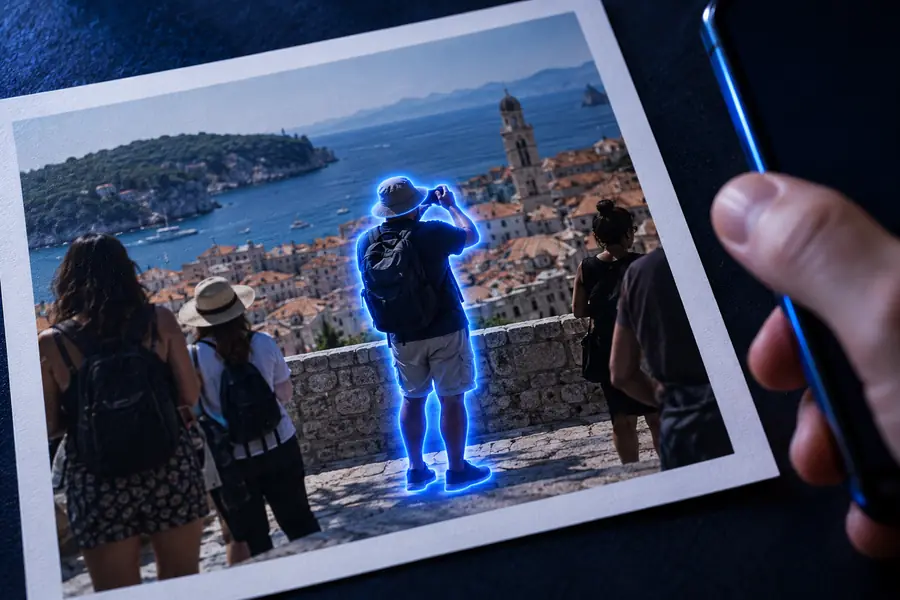 Before selection
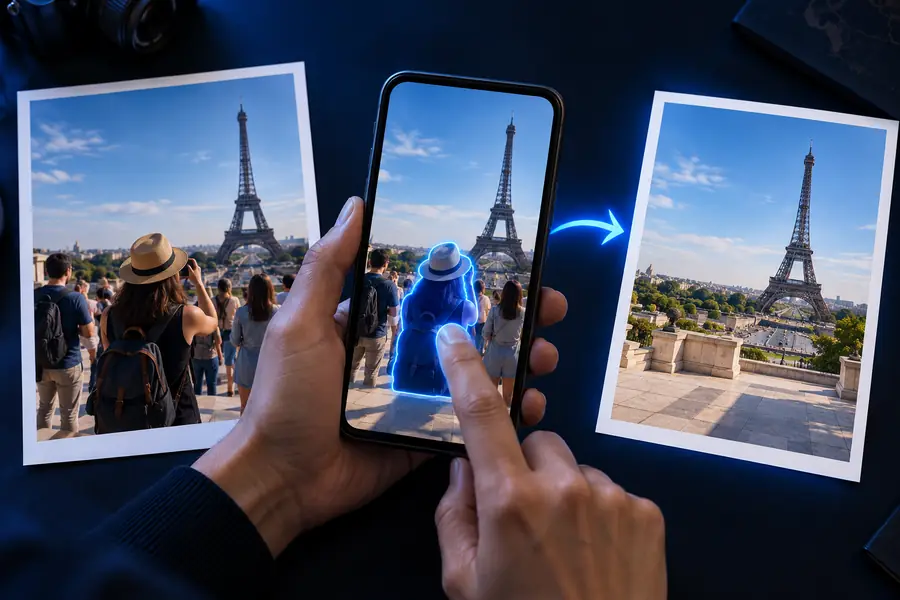 After review
Use the same disciplined sequence every time: start with the original, select only the unwanted area, inspect the repair at full size, and keep the untouched version until you are satisfied. When a scene is difficult, a smaller edit is usually easier to trust than an ambitious one.
Edit my photoQuick answers
These answers focus on the practical search intent behind using the eraser workflow in Google Photos.
Open the photo in its editing view and choose the available erase or removal control. Mark the distracting object as precisely as possible, review the generated result around its edges, and undo or refine the selection if the background changes too much.
It can be useful for a person who is small and separate from the main subject, but results depend on the surrounding scene. Check faces, hair, shadows, repeated textures, and nearby lines carefully before saving the edit.
The selected area may be too large, or the background may contain detail that is difficult to reconstruct, such as text, patterns, reflections, or strong edges. Undo the edit, make a tighter selection, and compare the new result with the original at both normal size and close zoom.
Keep the original until you have reviewed the finished image and know you no longer need the untouched version. A separate edited copy is safer when the photo matters, because it lets you revisit the image or try a different selection later.