Social media manager
A street photo has a passerby, bin, or temporary sign competing with the campaign subject.
Clean the composition quickly, then continue with the post layout, caption, and brand elements.
google magic eraserEditing workflow
Canva Magic Eraser can help tidy a photo before you publish, present, or reuse it. This guide shows where the tool belongs, how to prepare an image, and when a more focused editor may produce a cleaner result.

Related paths
Different tools suit different source images, editing goals, and levels of control.
Best-fit scenarios
The strongest results usually come from small, clearly defined edits rather than a complete reconstruction of a busy scene.
A street photo has a passerby, bin, or temporary sign competing with the campaign subject.
Clean the composition quickly, then continue with the post layout, caption, and brand elements.
google magic eraserA product image includes a stray cable, label, reflection, or piece of packaging that was not noticed during the shoot.
Make a focused correction without rebuilding the entire product graphic.
magic eraser photoA slide image contains an old date, handwritten mark, or background detail that distracts from the lesson.
Prepare a cleaner visual before adding text, arrows, or supporting explanations.
magic eraser onlineA scenic frame is strong, but a small group of people or a foreground distraction interrupts the view.
Test a restrained removal while preserving the horizon, texture, and sense of place.
magic eraser photoPractical sequence
A careful three-part pass helps you avoid asking the editor to invent more background than the original frame can support.
Choose the clearest version of the image and crop only after checking what surrounds the unwanted detail. Save an untouched copy so you can compare the result later.
Open the image in the design workflow, select the object or area to remove, and keep the selection as tight as practical. Small passes are easier to judge than one oversized sweep.
Look closely at edges, repeated textures, shadows, and faces near the edited area. Undo, refine, or switch tools if the replacement looks more noticeable than the original distraction.
Option check
The better choice depends less on the name of the tool and more on how much reconstruction your image requires.
Best starting point
Canva workflow
Images already being used in a Canva design
Dedicated online editor
A standalone photo that needs focused cleanup
Editing context
Canva workflow
Removal can happen alongside layouts, text, and brand elements
Dedicated online editor
The workspace is centered on the image itself
Ideal edit size
Canva workflow
Small or moderate distractions with nearby visual clues
Dedicated online editor
Edits that need more dedicated masking and review
Workflow advantage
Canva workflow
Fewer handoffs when the final asset is already a design
Dedicated online editor
A more focused route when removal quality is the main goal
Main risk
Canva workflow
A quick edit may be accepted without inspecting the surrounding texture
Dedicated online editor
Extra exporting and importing can interrupt a fast design task
Good review habit
Canva workflow
Zoom in before downloading or sharing the finished design
Dedicated online editor
Compare the cleaned image with the original at its intended size
Visual check
A before-and-after comparison is more useful than a quick glance at the finished image because it exposes texture changes and repeated patterns.
 Before cleanup
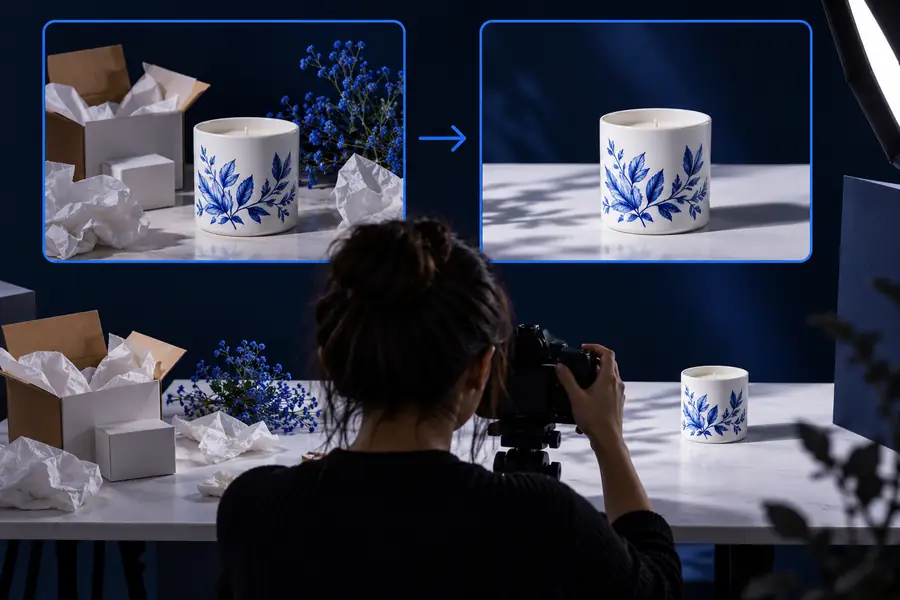 After cleanup
Know the edges
Object removal is helpful, but it is not a guarantee that every background can be reconstructed convincingly.
If a person covers text, a face, or a product edge, the editor has no reliable source for the missing information.
Workaround
Crop the frame, replace the covered element, or use a new photo with a clearer view.
Brick, fabric, foliage, railings, and architectural lines can reveal seams when the selected area is large.
Workaround
Work in smaller sections and inspect the pattern at full size before accepting the result.
Blur, harsh lighting, poor focus, and heavy compression are separate issues that removal alone will not solve.
Workaround
Correct the source image first or choose a workflow that includes broader photo adjustments.
A technically clean patch can still leave awkward spacing, an altered shadow, or an object that looks out of context.
Workaround
Review the complete composition at its final display size before exporting.
Next edit
Bring a specific cleanup task to the editor, inspect the result carefully, and keep the original image available for comparison. A focused prompt and a restrained selection usually produce a more dependable starting point than asking for a complete scene rewrite.
Open the image editorCommon questions
These answers clarify when the workflow is a sensible fit and when you should use a different editing approach.
It is used to remove an unwanted object or distracting area from an image inside a broader design workflow. Typical examples include stray people, small signs, cables, marks, and background clutter.
Not always. It is convenient when the image already belongs in a design, but a dedicated photo editor may be a better fit when the removal is large, technically difficult, or the main purpose of the task.
Start with the highest-quality source available and select only the unwanted detail rather than a large surrounding area. Inspect edges, textures, shadows, and nearby faces before you use the edited image.
The tool has to infer what belongs behind the object, and that becomes difficult when the background is busy, patterned, or partly hidden. Smaller selections, a different crop, or a new source image can reduce the problem.