Magic Eraser

Paper and pixels

Can a magic eraser for paper clean a page safely?

A mark on paper calls for a different decision than a distraction in a photograph of that paper. Magic Eraser helps you distinguish physical cleaning from digital image cleanup before you risk an original.

Magic Eraser site imagery

the audience's existing pipeline

Most paper projects begin with an original page, then move to a camera or scanner, a working image, and a final copy. Decide which version actually needs changing.

Know which marks should stay

A melamine cleaning sponge is abrasive. It cannot selectively remove a stain while guaranteeing that ink, coating, or paper fibers remain untouched.

It cannot safely scrub every page

Friction can roughen fibers, thin the sheet, lift printing, or leave a pale patch. Coated, fragile, and valuable paper are especially poor candidates.

Workaround

Keep the original dry and unaltered; ask a paper conservator about an item that matters.

A digital edit cannot repair the original

Cleaning a scan changes image pixels, not the stain, tear, or indentation on the physical sheet.

Workaround

Label the edited image as a reproduction and retain an untouched capture.

Missing writing cannot be verified by guessing

A cleanup pass may conceal or invent letter shapes where a mark crosses handwriting or print.

Workaround

Check the original and preserve an unedited reference beside any cleaned copy.

where we slot in

For a visual presentation copy, work from a capture instead of rubbing the page. This workflow is for image cleanup, not document conservation.

  1. 1

    Capture the original

    Photograph or scan the page in even light. Keep every edge visible and save an untouched version before making changes.

  2. 2

    Identify the distraction

    Separate an object or shadow beside the page from writing on it. Avoid treating signatures, annotations, and source details as disposable blemishes.

  3. 3

    Review the edited copy

    Compare it with the original at normal size and close up. Check letter edges, page texture, and areas where the cleanup could change meaning.

before/after

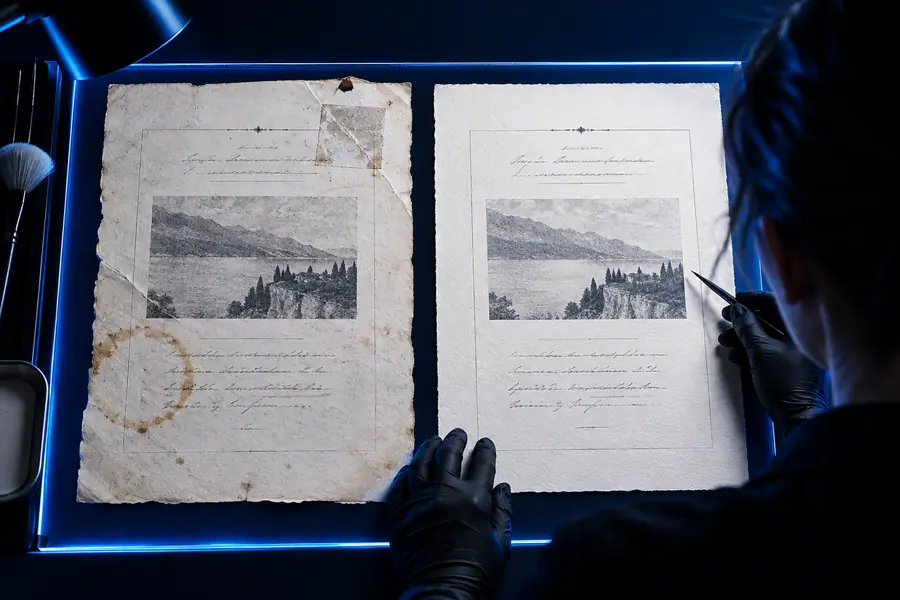
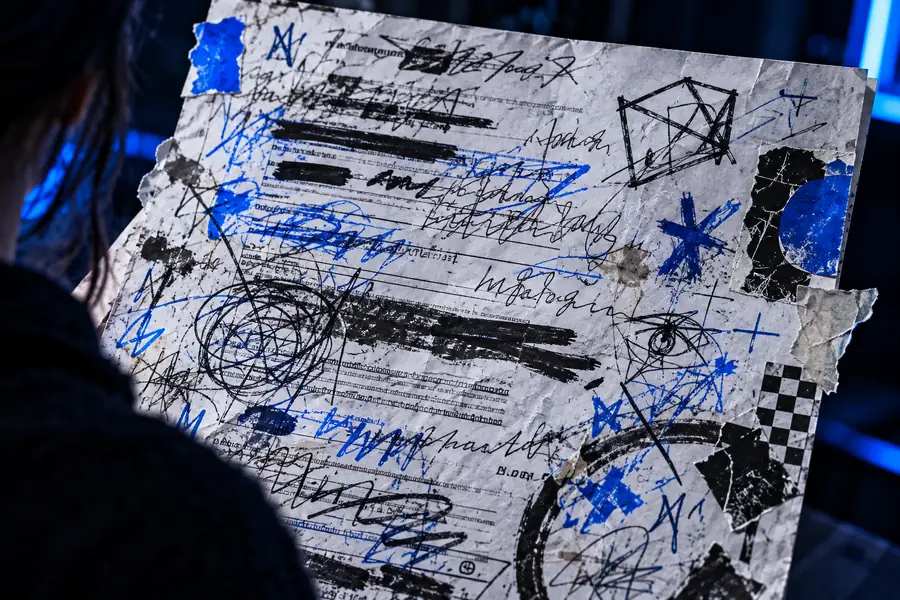
The image pair illustrates the distinction: removing a visual distraction from a picture does not erase a mark from the object that was photographed.

Illustrative image with distracting text and graphic elements Image with distraction
Illustrative image after distracting overlays have been removed Edited image
Illustrative image cleanup only; these pictures do not demonstrate restoration of a paper document.

deliverable spec

Choose the method by the result you need. Neither approach should be described as restoring an original when it only changes its appearance.

Physical sponge on paper
Editing a captured image

What changes

Physical sponge on paper

The actual sheet and its surface

Editing a captured image

A separate image of the sheet

Original preserved

Physical sponge on paper

Not reliably; abrasion can be permanent

Editing a captured image

Yes, if the original and untouched capture are retained

Best-suited task

Physical sponge on paper

Not recommended as a general paper-cleaning method

Editing a captured image

Preparing a presentation image while preserving source material

Main risk

Physical sponge on paper

Fiber loss, lifted ink, or a changed finish

Editing a captured image

A misleading image or damaged-looking text

Reversibility

Physical sponge on paper

Surface wear cannot simply be undone

Editing a captured image

A working copy can be discarded if the source was saved

Useful deliverable

Physical sponge on paper

No dependable clean-paper result

Editing a captured image

A reviewed image plus its unedited reference

Decisions for different materials

The surface and the intended output change the answer. These examples keep physical treatment separate from editing a photograph.

Student photographing notes

A desk object appears beside a notebook page, but the handwriting itself must remain legible.

Edit a copy of the photograph, then compare every line with the untouched capture. For a broader image-focused approach, see the linked photo guide.

magic eraser photo

Archivist handling a letter

A stain overlaps dated handwriting on an original sheet.

Avoid scrubbing and preserve a faithful capture; uncertain marks should stay visible. The linked safety guide explains why material and surface matter.

Is magic eraser safe to use?

Seller styling a flat lay

A shirt and printed card share a product photo, and lint distracts from the composition.

Separate changes to the photograph from cleaning either real surface. The linked clothing guide covers why fabric needs its own handling decision.

magic eraser for clothes

Keep the page; review the picture

Work from an image when the original matters

If your goal is a cleaner-looking photograph, explore image-editing options without treating an abrasive sponge as a paper-restoration tool. Keep the source image so you can check what changed.

Explore image editing
  • Preserve the physical original
  • Keep an untouched reference
  • Inspect text before sharing

scenario FAQ

It is a risky choice even on ordinary printer paper. The sponge's abrasion can disturb fibers or printed ink, and rubbing cannot guarantee an even finish. If you need a clean-looking picture, work from a copy or capture instead.

It may also remove or roughen the paper surface. A conventional pencil eraser used gently is generally the more relevant tool for pencil, but test an inconspicuous area and stop if the sheet changes. Do not experiment on valuable originals.

It may improve the appearance of a working image, but it cannot recover information hidden beneath a stain. Keep the unedited scan and inspect the result for altered letters or fabricated-looking texture. Do not present a cleaned image as an untouched record.

Avoid abrasive cleaning and keep a faithful photograph or scan for reference. A conservator can advise on a valuable or historically significant original. For an image used in a presentation, distinguish any edited copy from the source.

Edit a photo
Edit a photo