
Magic Eraser

Photo tutorial

How to use magic eraser on walls without damage

How to use magic eraser on walls depends on what you want to remove from the image. Use a narrow brush for small marks, or a broader pass for distracting objects and clutter.

Review the result before saving
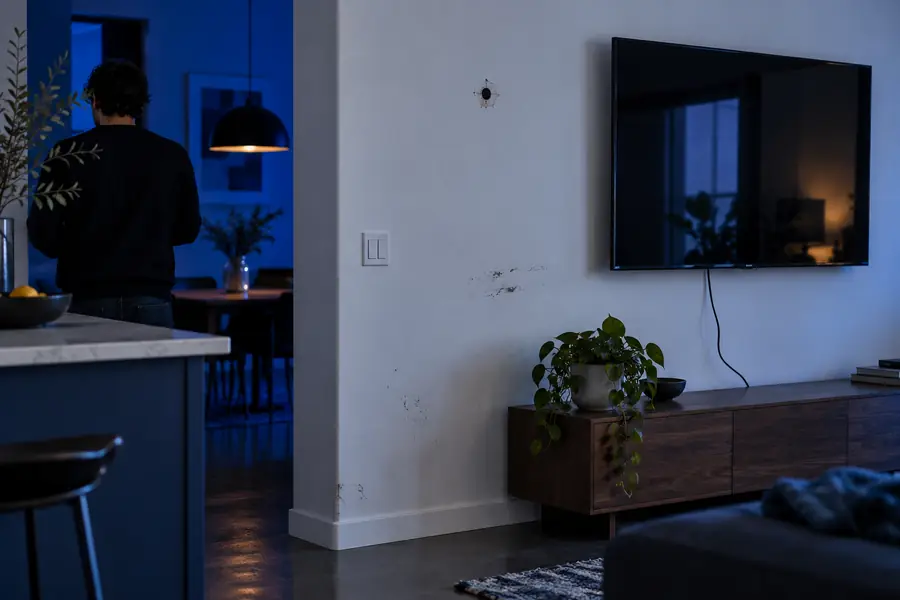
Clean wall photo editing workspace

Before you begin

Choose the right route

The best workflow depends on whether you are editing a wall photo, cleaning a broader scene, or working from a phone-based photo library.

Path A

Path A: remove a small wall mark

Choose this path for scuffs, tiny stains, nail holes, light switches, or other isolated details that sit on a mostly consistent wall surface.

  1. 1

    Open a clear wall photo

    Use the highest-quality version available and crop only if the wall detail is difficult to see. A straight, well-lit image gives the magic eraser more surrounding texture to reference.

  2. 2

    Mark only the unwanted detail

    Keep the selection slightly inside the mark instead of sweeping across the whole wall. A controlled selection helps preserve paint texture, trim, shadows, and nearby edges.

  3. 3

    Inspect the repaired area

    Zoom in around the selection and compare it with the surrounding wall. If the fill looks too smooth or repeats a nearby pattern, undo it and make a smaller pass.

Path B

Path B: clear a larger distraction

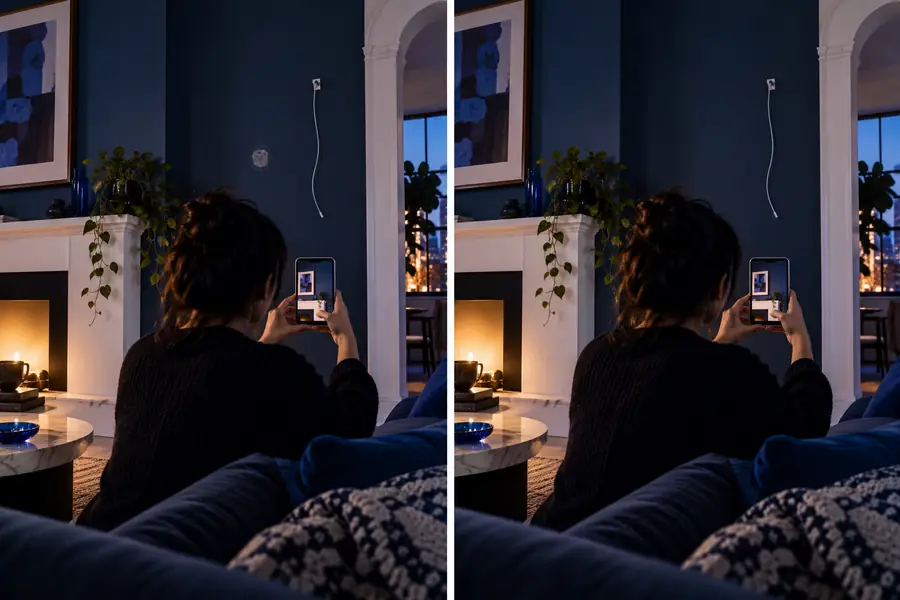
Use a wider pass when the wall photo includes a poster, leaning object, visible cable, furniture edge, or several connected distractions.

Wall photo with a visible distraction before editing Before cleanup
Wall photo with the distraction removed and the surface blended After cleanup
The goal is a believable wall, not a perfectly flat one. Preserve natural shadows, corner lines, grain, and uneven lighting so the edited area does not look pasted over.

Quality control

Final check: know the limits

A magic eraser edits the photograph; it does not physically repair or clean the wall. Check the result carefully when the surface has strong structure or important architectural detail.

It cannot repair the real wall

Removing a mark from an image changes the pixels in the photo, not the paint, plaster, or surface in the room.

Workaround

Use the edited image for presentation, planning, or listing purposes, then handle physical repairs separately.

It may struggle with strong texture

Brick, wood paneling, patterned wallpaper, and heavily mottled paint can make a replacement area look repeated or artificial.

Workaround

Use a smaller selection, make several controlled passes, and compare the result at full size.

It cannot know hidden geometry

If an object covers a corner, outlet, baseboard, or cast shadow, the tool has to infer what belongs behind it.

Workaround

Leave structural edges intact and avoid selecting across trim, corners, or other lines that define the room.

It may soften nearby details

A broad brush can blur lettering, hardware, wall art edges, or subtle lighting transitions next to the selected area.

Workaround

Start with the smallest practical brush and review the boundary before keeping the result.

Take the next step

Ready to clean up the wall photo?

Open the image editor with a specific cleanup instruction, then review the wall texture and edges before you keep the result. A precise prompt and a restrained selection usually produce a more natural edit than a broad sweep.

Edit my wall photo
  • Describe the exact mark or object
  • Keep selections away from trim and corners
  • Review the result at full size

Common questions

Tutorial FAQ

Open a clear wall photo, identify the mark or object you want to remove, and select only that area. Review the surrounding paint texture, corners, trim, and shadows before saving the edited image.

Start with small, isolated distractions such as scuffs, nail holes, stains, or stray marks. These give you a better sense of how the magic eraser handles the wall texture before you attempt a larger object.

Use a small selection for a single mark and a wider selection only when the distraction covers a connected area. Keeping the selection controlled helps the magic eraser preserve nearby edges and natural lighting.

The selected area may be too large, or the wall may contain texture that is difficult to reconstruct. Undo the pass, reduce the selection, and check whether the result is crossing a corner, trim line, shadow, or patterned surface.

No. It changes the wall in the photograph, not in the physical room. Use the edited image for visual cleanup, presentation, or planning, and address real stains or damage with an appropriate repair method.

Edit a photo
Edit a photo